
Implementation Guide
This page lists out directions to implement Gallery Structured API for your media gallery.
Prerequisites
| Requirement | Status | Notes |
|---|---|---|
BV client-id | Not needed | Standalone API has no client concept |
Bv-Passkey | Not needed | No authentication required |
dataSourceId | Required | Same ID from your frontend C&C widget config (data-crl8-container-id) |
| Gallery filter | Required | Must match frontend widget filter for anti-cloaking |
Where to find your dataSourceId
Self-serve clients can find the dataSourceId in the vibe dashboard using one of these methods:
Method 1: Gallery Section
Navigate to Commerce > Galleries in the Bazaarvoice Portal. Hover over your gallery name to reveal the Data Source ID displayed below the gallery title.

Method 2: Customize Editor (GEO Section)(Self-Serve Clients)
Click Customize on your gallery, then look for the "To enable GEO discovery" section. This provides a pre-configured API request with your dataSourceId and placeholder parameters already populated.
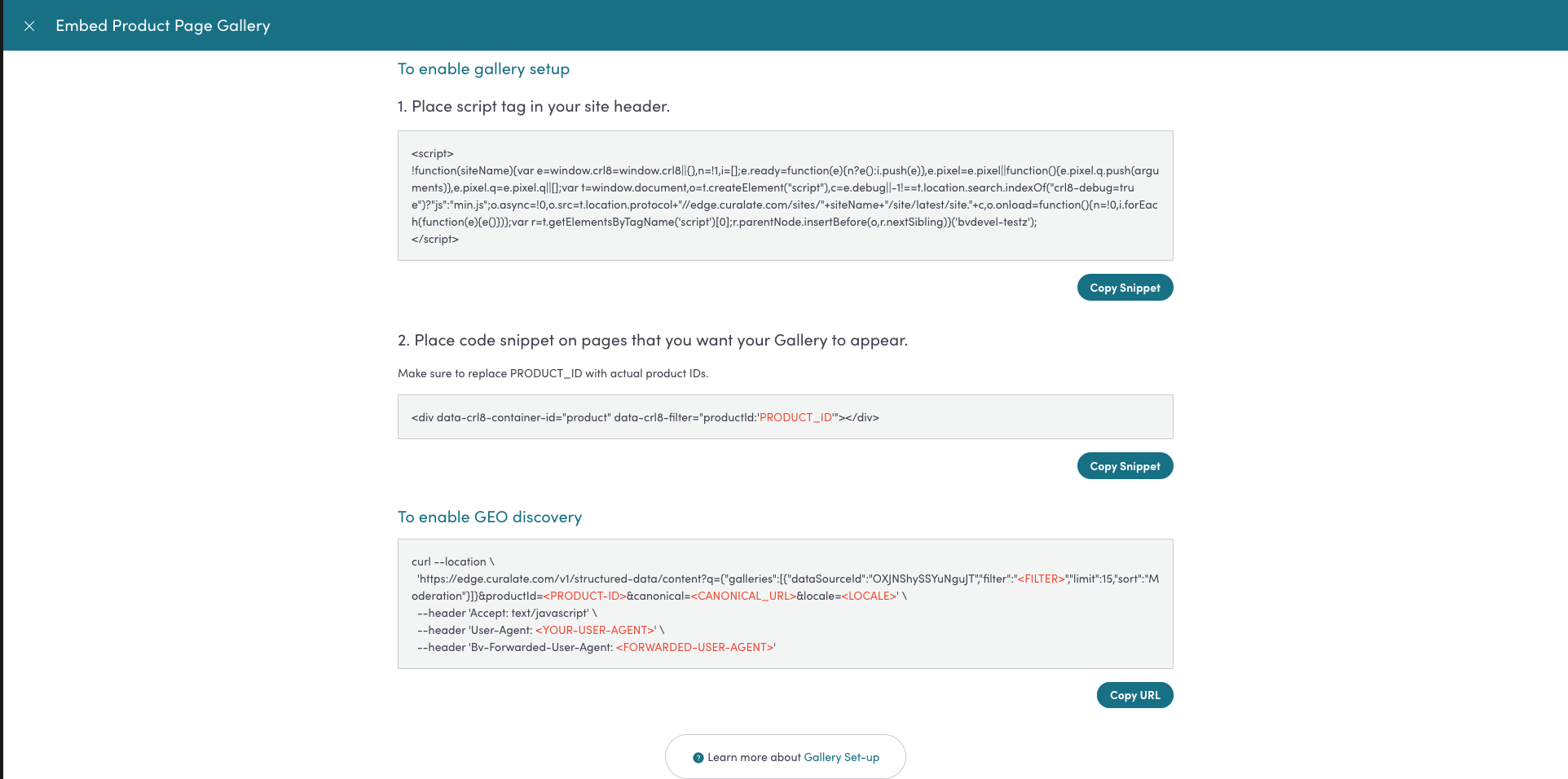
Gallery Configuration Alignment
The structured data returned by this API must match what visitors see on your page. This means:
- Same
dataSourceId— Use the exact container ID from your frontend widget - Same
filter— If your widget filters by product, label, or category, use the same filter - Same or fewer items — Request
limitequal to or less than what your widget displays - Same network source — If your widget only shows Instagram content, filter accordingly
Implementation Requirements
This guide walks you through integrating the Gallery Structured Data API into your server-side workflow.
Step 1: Gather Required Information
dataSourceId— Your gallery data source identifier, available in the Bazaarvoice Portal under your C&C configurationfilter— The filter expression your widget uses (if any)limit— Number of items your widget displays
Step 2: Implement Server-Side API Call
Endpoint
| Environment | URL |
|---|---|
| Production | https://edge.curalate.com/v1/structured-data/content |
HTTP Method: GET
Required Headers
| Header | Description |
|---|---|
Accept | Response format. Default: text/javascript |
Bv-Forwarded-User-Agent | Original crawler's User-Agent string |
Required Query Parameters
| Parameter | Description |
|---|---|
q | JSON object with galleries array |
locale | Content locale (e.g., en_US) |
Sample Request
curl --location 'https://edge.curalate.com/v1/structured-data/content?q={"galleries":[{"dataSourceId":"aBcDeFgHiJkLmNoP"}]}&locale=en_US' \
--header 'Accept: text/javascript' \
--header 'User-Agent: Java-http-client/17.0.7' \
--header 'Bv-Forwarded-User-Agent: Mozilla/5.0 AppleWebKit/537.36 (KHTML, like Gecko); compatible; GPTBot/1.1; +https://openai.com/gptbot'
Sample Response
<script type="application/ld+json" id="bv-geo-jsonld-gallery-1-data">
{
  "@context": "https://schema.org",
  "@type": "ItemList",
  "name": "Visual Gallery",
  "numberOfItems": 10,
  "itemListElement": [...]
}
</script>
Step 3: Insert the Response into Your Webpage
Insert the API response directly into the HTML <head> of your webpage. The response includes the required <script type="application/ld+json"> tags — embed it without modification.
<!DOCTYPE html>
<html>
<head>
  <title>Page Title</title>
  {{ gallery_structured_data | safe }}
</head>
<body>
  <!-- Page content -->
</body>
</html>
Step 4: Verify Implementation
- Execute cURL requests against your page URLs
- Set
User-Agentheader to mimic AI crawlers (e.g.,GPTBot,Googlebot) - Confirm presence of
<script type="application/ld+json">tags in the response - Validate with Google Rich Results Test
Updated 4 months ago