
Implementation Guide - Galleries Structured Data
This page lists out directions to implement Gallery Structured data for your Vibe media gallery.
q Param Prerequisites
q Param Prerequisites| Requirement | Status | Notes |
|---|---|---|
dataSourceId | Required | Same ID from your frontend Content & Creators widget config (data-crl8-container-id). |
| Gallery filter | Required | Must match frontend widget filter. |
Where to find your dataSourceId
Self-serve clients can find the dataSourceId in the vibe dashboard using one of these methods:
Method 1: Gallery Section
Navigate to Commerce > Galleries in the Bazaarvoice Portal. Hover over your gallery name to reveal the Data Source ID displayed below the gallery title.

Method 2: Customize Editor (GEO Section)(Self-Serve Clients)
Click Customize on your gallery, then look for the "To enable GEO discovery" section. This provides a pre-configured API request with your dataSourceId and placeholder parameters already populated.
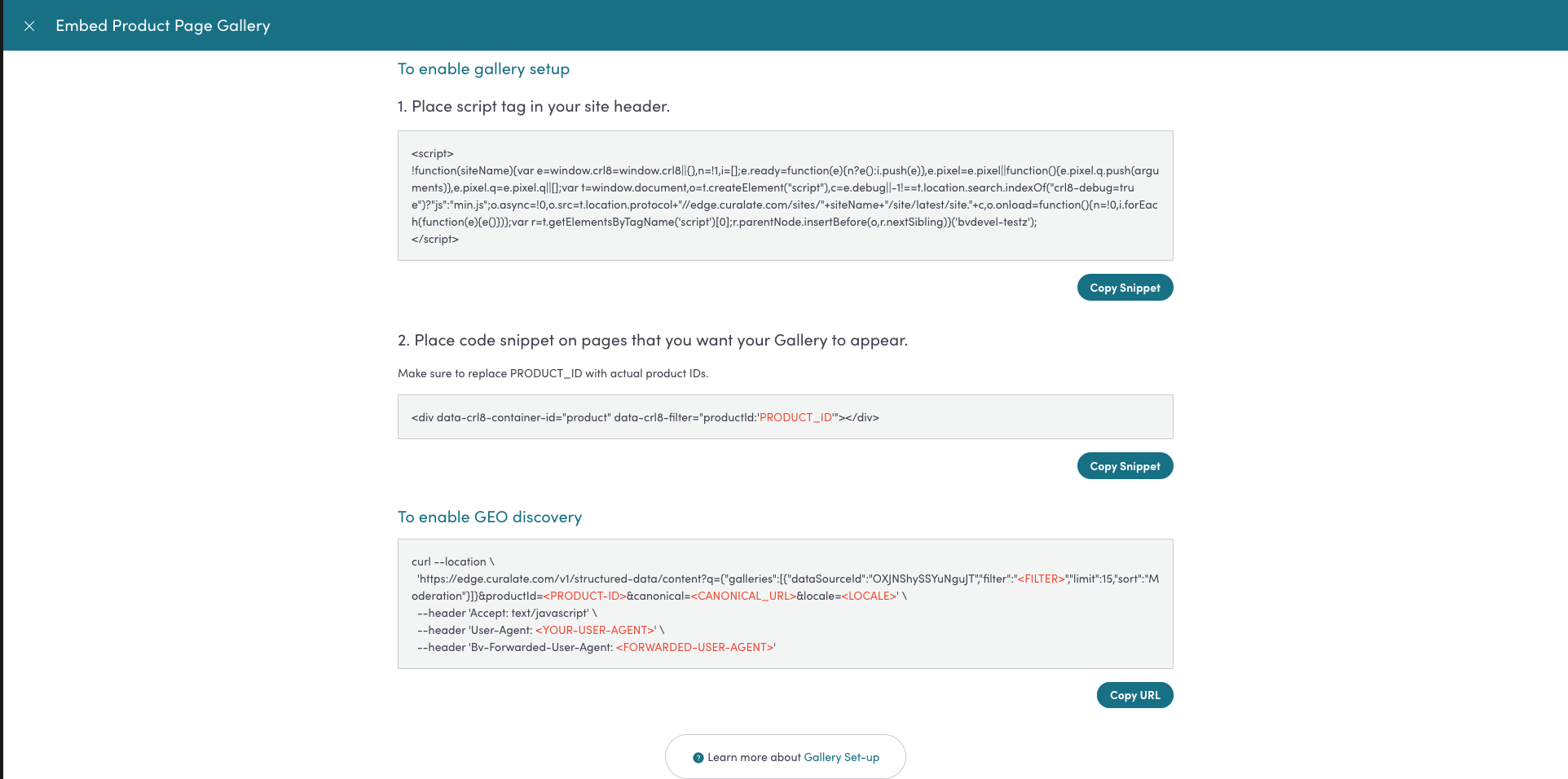
Gallery Configuration Alignment
The structured data returned by this API must match what visitors see on your page. This means:
- Same
dataSourceId— Use the exact container ID from your frontend widget - Same
filter— If your widget filters by product, label, or category, use the same filter - Same or fewer items — Request
limitequal to or less than what your widget displays - Same network source — If your widget only shows Instagram content, filter accordingly
Implementation Requirements
The following section walks you through integrating the Gallery Structured Data response via Authentic Discovery API into your server-side workflow.
Step 1: Gather Required Information
dataSourceId— Your gallery data source identifier, available in the Bazaarvoice Portal under your Content & Creators (Vibe) configurationfilter— The filter expression your widget uses (if any). Please refer to the Media Filters section.limit— Number of items your widget displays
Step 2: Implement Server-Side API Call
Endpoint
| Environment | URL |
|---|---|
| Staging | https://seo-stg.bazaarvoice.com/structured-data/v1/clients/{client-id}/ugc |
| Production | https://seo.bazaarvoice.com/structured-data/v1/clients/{client-id}/ugc |
HTTP Method: GET
Required Headers
| Header | Description |
|---|---|
Accept | Response format. Default: text/javascript |
Bv-Passkey* | Your Bazaarvoice Authentic Discovery API key |
Bv-Forwarded-User-Agent | Original crawler's User-Agent string |
Required Query Parameters
| Parameter | Description |
|---|---|
q | JSON object with galleries array |
locale | Content locale (e.g., en_US) |
Send Filters, Limit, and Sort Options
You can pass filters, limit, and sort parameters in the q parameter to control which gallery content is returned.
For filter syntax details, see Media Filters (Vibe - Social Commerce API).
Sample Request
curl --location 'https://seo-stg.bazaarvoice.com/structured-data/v1/clients/yourclientid/ugc?q={"galleries":[{"dataSourceId":"aBcDeFgHiJkLmNoP"}]}&locale=en_US' \
     --header 'Accept: application/ld+json' \
     --header 'Bv-passkey: Your-passkey'
Sample Response
<script type="application/ld+json" id="bv-geo-jsonld-gallery-1-data">
{
  "galleries": [
    {
      "@context": "https://schema.org",
      "@type": "ItemList",
      "name": "Visual Gallery",
      "numberOfItems": 156,
      "itemListElement": [
        {
          "@type": "ListItem",
          "position": 1,
          "item": {
            "@type": "VideoObject",
            "name": "Morning skincare routine that changed everything",
            "description": "Morning skincare routine that changed everything. Finally found the perfect combination for my sensitive skin. The glow is unreal! #skincare #morningroutine #glowingskin",
            "uploadDate": "2026-05-18T09:30:00Z",
            "contentUrl": "https://edge.curalate.com/v1/vid/aBcDeFgHiJkLmNoPqRsTuVwXyZ=/h",
            "thumbnailUrl": "https://edge.curalate.com/v1/img/aBcDeFgHiJkLmNoPqRsTuVwXyZ=/sc/300x300",
            "creator": {
              "@type": "Person",
              "name": "Emma Thompson",
              "alternateName": "@emmathompson_beauty",
              "url": "https://instagram.com/emmathompson_beauty"
            },
            "creditText": "@emmathompson_beauty via Instagram",
            "copyrightNotice": "© Emma Thompson. Used with permission.",
            "isBasedOn": "https://www.instagram.com/reel/CxYz123AbCd/",
            "interactionStatistic": [
              {
                "@type": "InteractionCounter",
                "interactionType": "LikeAction",
                "userInteractionCount": 8542
              },
              {
                "@type": "InteractionCounter",
                "interactionType": "CommentAction",
                "userInteractionCount": 127
              }
            ]
          }
        },
        {
          "@type": "ListItem",
          "position": 2,
          "item": {
            "@type": "ImageObject",
            "name": "Date night look complete",
            "description": "Date night look complete. This lipstick shade is absolutely stunning - the perfect rose with a hint of berry. Lasted through dinner and dessert! #datenight #lipstick #makeuplook",
            "uploadDate": "2026-05-15T19:45:00Z",
            "contentUrl": "https://edge.curalate.com/v1/img/xYz789AbCdEfGhIjKlMnOp=",
            "thumbnailUrl": "https://edge.curalate.com/v1/img/xYz789AbCdEfGhIjKlMnOp=/sc/300x300",
            "creator": {
              "@type": "Person",
              "name": "Sophia Chen",
              "alternateName": "@sophiastyle",
              "url": "https://instagram.com/sophiastyle"
            },
            "creditText": "@sophiastyle via Instagram",
            "copyrightNotice": "© Sophia Chen. Used with permission.",
            "isBasedOn": "https://www.instagram.com/p/DeFgHiJ456/",
            "interactionStatistic": [
              {
                "@type": "InteractionCounter",
                "interactionType": "LikeAction",
                "userInteractionCount": 12350
              },
              {
                "@type": "InteractionCounter",
                "interactionType": "CommentAction",
                "userInteractionCount": 89
              }
            ]
          }
        }
      ]
    }
  ]
}
</script>
Supported Markup Schema
| Attribute | Description |
|---|---|
@context | Schema.org context URL |
@type | ItemList for gallery container |
name | Gallery name |
numberOfItems | Total count of items in the gallery |
itemListElement | Array of ListItem objects |
ListItem
| Attribute | Description |
|---|---|
@type | ListItem |
position | 1-based position in the list |
item | ImageObject or VideoObject |
ImageObject / VideoObject
| Attribute | Description |
|---|---|
@type | ImageObject or VideoObject |
name | Post caption (first line) |
description | Full post caption |
uploadDate | ISO 8601 timestamp |
contentUrl | Full-resolution media URL |
thumbnailUrl | Thumbnail URL |
creator | Person object with creator info |
creditText | Attribution text |
copyrightNotice | Copyright notice |
isBasedOn | Original social media post URL |
interactionStatistic | Array of engagement metrics |
about | Array of tagged products (when available) |
Person (Creator)
| Attribute | Description |
|---|---|
@type | Person |
name | Creator's display name |
alternateName | Social media handle |
url | Profile URL |
InteractionCounter
| Attribute | Description |
|---|---|
@type | InteractionCounter |
interactionType | LikeAction or CommentAction |
userInteractionCount | Count of interactions |
Thing (Product)
| Attribute | Description |
|---|---|
@type | Thing |
name | Product name |
url | Product page URL |
Step 3: Insert the Response into Your Webpage
Insert the API response directly into the HTML <head> of your webpage. The response includes the required <script type="application/ld+json"> tags — embed it without modification.
<!DOCTYPE html>
<html>
<head>
  <title>Page Title</title>
  {{ gallery_structured_data | safe }}
</head>
<body>
  <!-- Page content -->
</body>
</html>
Step 4: Verify Implementation
- Execute cURL requests against your page URLs
- Set
User-Agentheader to mimic AI crawlers (e.g.,GPTBot,Googlebot) - Confirm presence of
<script type="application/ld+json">tags in the response - Validate with Google Rich Results Test
Link Product Schema to Gallery Content
On product detail pages (PDPs), you can link gallery product references to your existing Product schema using the canonical and productId parameters. This enables search engines and AI crawlers to merge your product details with gallery UGC into unified rich results.
ThecanonicalandproductIdparameters are only required for PDP pages. Homepage and category pages do not need these parameters.
How It Works
The canonical parameter acts as a unique identifier (@id) that connects your Product schema with gallery product references. When a gallery item's tagged product matches the productId, the API injects the @id field using your canonical URL.
Sample Request
curl --location 'https://seo-stg.bazaarvoice.com/structured-data/v1/clients/yourclientid/ugc?q={"galleries":[{"dataSourceId":"aBcDeFgHiJkLmNoP","filter":"productId:PRD-12345"}]}&locale=en_US&canonical=https://www.example.com/products/hydra-glow-moisturizer%23product&productId=PRD-12345' \
--header 'Accept: text/javascript' \
--header 'Bv-passkey: Your-passkey'\
--header 'User-Agent: Java-http-client/17.0.7' \
--header 'Bv-Forwarded-User-Agent: Mozilla/5.0 AppleWebKit/537.36 (KHTML, like Gecko); compatible; GPTBot/1.1; +https://openai.com/gptbot'
Sample Response
The gallery response includes @id on matching products:
<script type="application/ld+json" id="bv-geo-jsonld-gallery-1-data">
{
  "@context": "https://schema.org",
  "@type": "ItemList",
  "name": "Visual Gallery",
  "numberOfItems": 10,
  "itemListElement": [
    {
      "@type": "ListItem",
      "position": 1,
      "item": {
        "@type": "ImageObject",
        "name": "Summer essential found",
        "description": "Summer essential found. This lightweight moisturizer is perfect for hot days!",
        "contentUrl": "https://edge.curalate.com/v1/img/MnOpQrStUvWxYz123456=",
        "about": [
          {
            "@type": "Thing",
            "@id": "https://www.example.com/products/hydra-glow-moisturizer#product",
            "name": "Hydra Glow Lightweight Moisturizer SPF 30",
            "url": "https://www.example.com/products/hydra-glow-moisturizer"
          }
        ]
      }
    }
  ]
}
</script>
Your Product Schema
Your existing Product schema on the same page should use the same @id:
<script type="application/ld+json">
{
  "@context": "https://schema.org",
  "@type": "Product",
  "@id": "https://www.example.com/products/hydra-glow-moisturizer#product",
  "name": "Hydra Glow Lightweight Moisturizer SPF 30",
  "image": "https://www.example.com/images/hydra-glow.jpg",
  "description": "Lightweight daily moisturizer with SPF 30 protection.",
  "brand": {
    "@type": "Brand",
    "name": "Example Beauty"
  },
  "offers": {
    "@type": "Offer",
    "price": "42.00",
    "priceCurrency": "USD"
  }
}
</script>
When both schemas share the same @id, search engines and AI crawlers merge them into a single entity — your product with its associated gallery UGC.
Updated 2 months ago